Account setup
Creating your account
Go to app.getzenstep.com and sign up. Zenstep supports two authentication methods:
- Magic link — enter your email, receive a one-click sign-in link
- Google OAuth — sign in with your Google account
No password required. After signing in for the first time, Zenstep automatically creates an organization for you and assigns you the Owner role.
Your organization
Every account in Zenstep belongs to an organization. The organization is the root container for all your flows, settings, branding, and team members.
On first login you'll land on the activation checklist — a quick-start guide that walks you through installing the snippet, creating your first flow, and publishing it.
Dashboard overview
The dashboard is organized into four main sections:
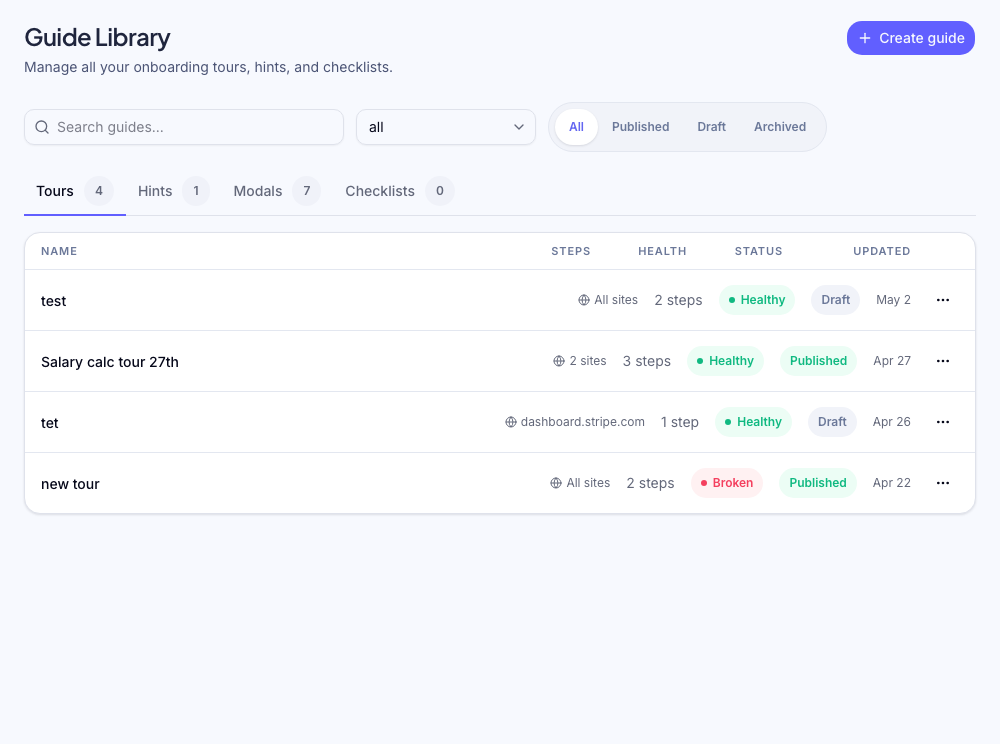
Guide — the flow builder. Create and manage tours, tooltips, hotspots, and checklists. Each flow type lives in its own section within the Guide area.
Announce — the announcement layer. Create banners (top/bottom strips) and modals (full-screen overlays) to highlight news, promotions, or product updates.
Analyze — cross-flow analytics. See views, completion rates, and dropoff across all your flows in one place.
Settings — organization settings, including branding, team management, billing, AI configuration, and targeting rules.
Finding your snippet key
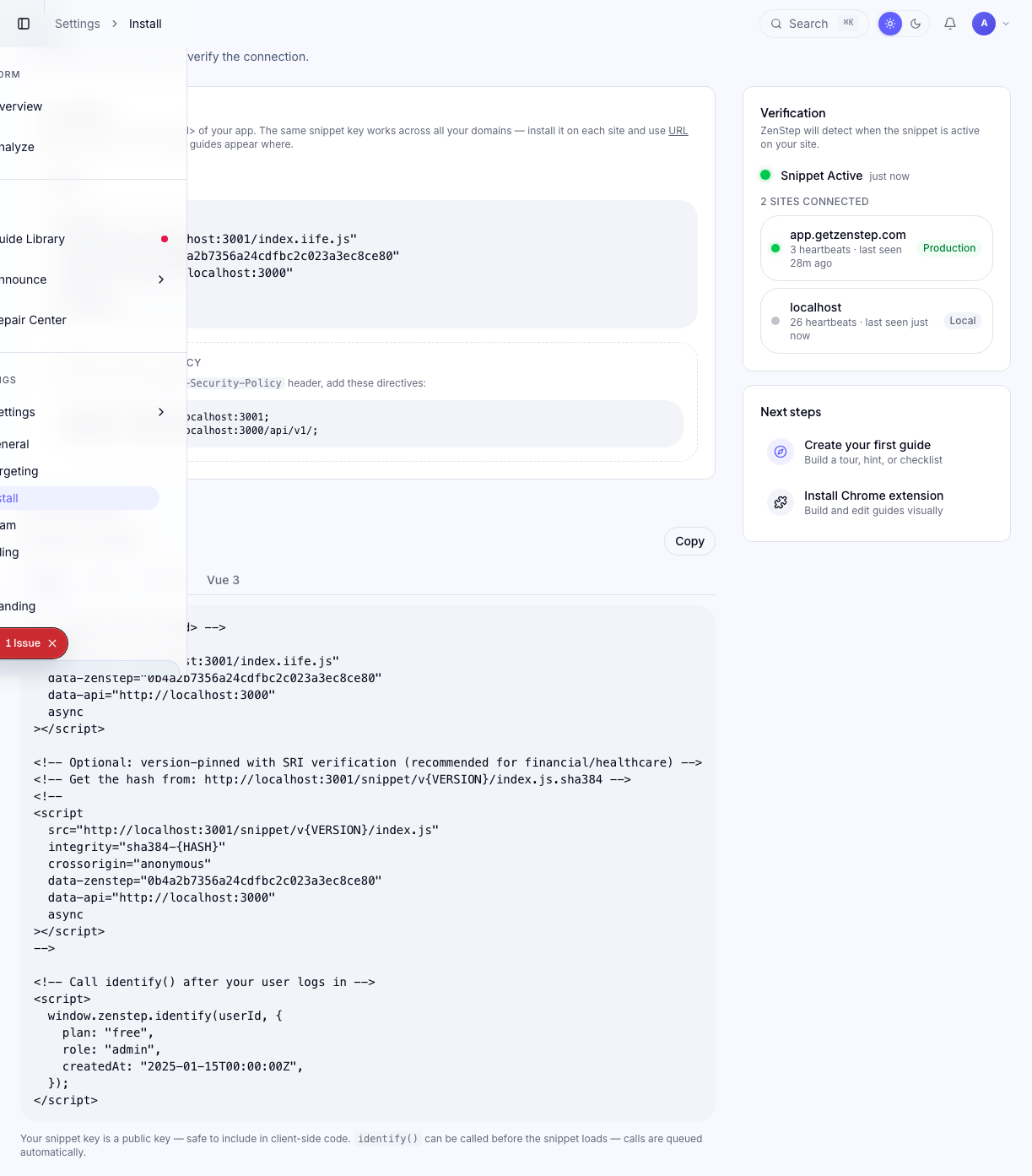
Your snippet key is how Zenstep identifies your organization on your live site. To find it:
- Go to Install in the left navigation (or navigate to
/install) - Your snippet key is shown in the installation code block
The snippet key is a UUID-format string (e.g. a1b2c3d4e5f6...). Keep it accessible — you'll need it when configuring the snippet on your website.
Your snippet key is not a secret — it's safe to include in client-side code. It only allows reading flows and posting anonymous analytics events for your organization.
Snippet status indicator
The Install page shows a live snippet status indicator. Once you've added the snippet to your site and a page has loaded with it, the indicator turns green. If you're still setting up, it shows as "Not detected yet."
Next steps
- Install the snippet on your website
- Invite your team to collaborate
- Review your plan and billing to understand your limits
Was this helpful?
Related articles