Invite your team
Roles in Zenstep
Zenstep has three roles:
| Role | What they can do | | ---------- | -------------------------------------------------------------- | | Owner | Full access — billing, team management, all flows and settings | | Editor | Create, edit, and publish flows; cannot manage team or billing | | Viewer | Read-only — can view flows and analytics, cannot edit |
You are automatically assigned Owner when you create the organization. There can be multiple owners.
Inviting a team member
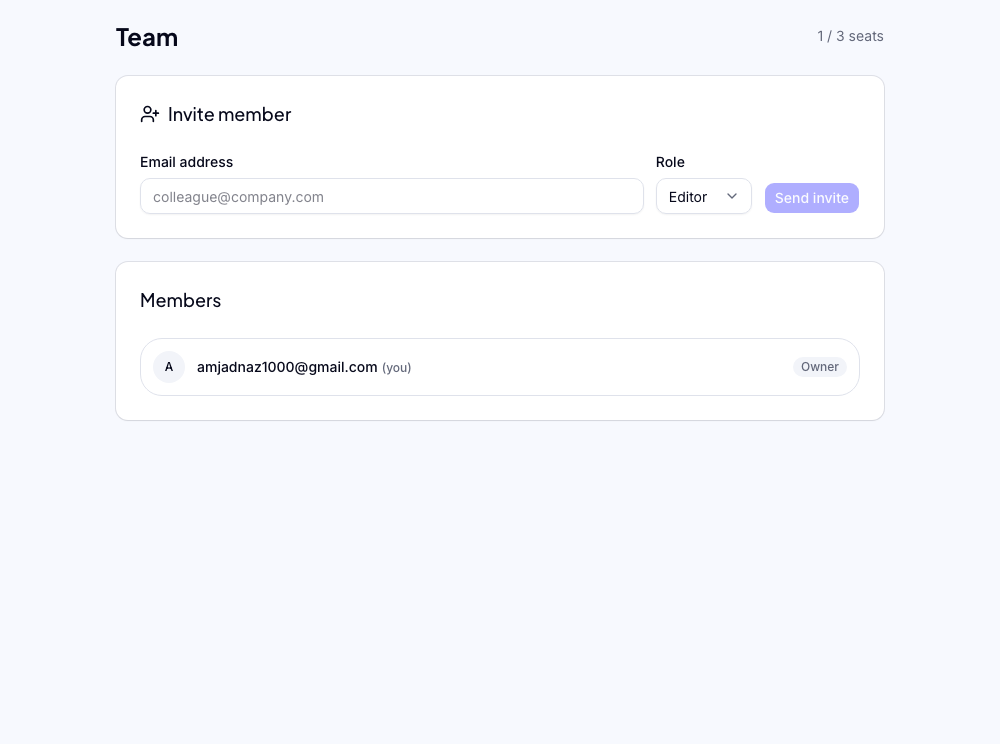
- Go to Settings → Team in the dashboard
- Click Invite member
- Enter their email address
- Select a role (Editor is the right choice for most teammates)
- Click Send invite
The invited person receives an email with a sign-in link. When they click it, they're added to your organization automatically.
Invites expire after 7 days. If a teammate missed the invite, go to Settings → Team and resend it.
Managing existing members
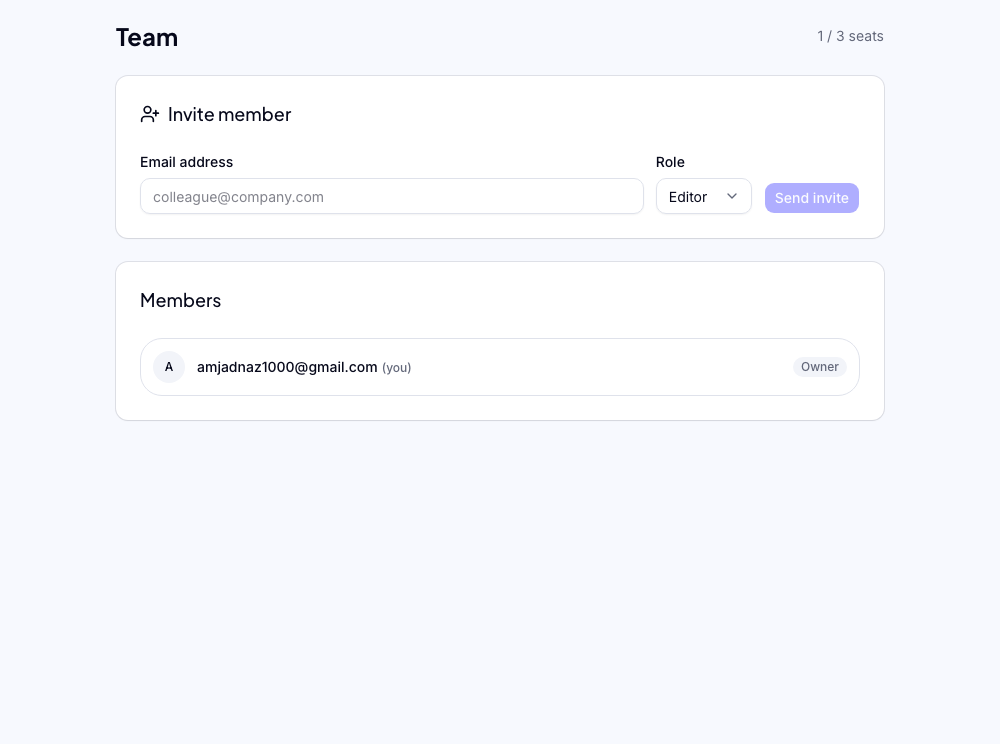
From Settings → Team you can:
- Change role — click the role badge next to any member to promote or demote them
- Remove member — click the three-dot menu → Remove. Their work (flows, steps) is preserved — only their access is revoked
- Resend invite — for pending invites that haven't been accepted yet
Plan limits
The number of team seats depends on your plan:
- Free — 1 seat (owner only)
- Grow — 3 seats
- Scale — unlimited seats
If you're on a plan that limits seats and need to add more people, upgrade your plan first. See billing for plan details.
Next steps
- Set up branding so flows match your product's look and feel
- Create your first flow if you haven't yet
Was this helpful?
Related articles