Banners
What is a banner?
A banner is a slim horizontal strip that appears at the top or bottom of your app. It contains a short message and optional CTA button. Banners are non-blocking — users can continue using your app while the banner is visible.
Banners are best for:
- Announcing scheduled maintenance or outages
- Promoting limited-time offers or upgrade opportunities
- Persistent reminders (e.g., "Complete your profile to unlock X")
Creating a banner
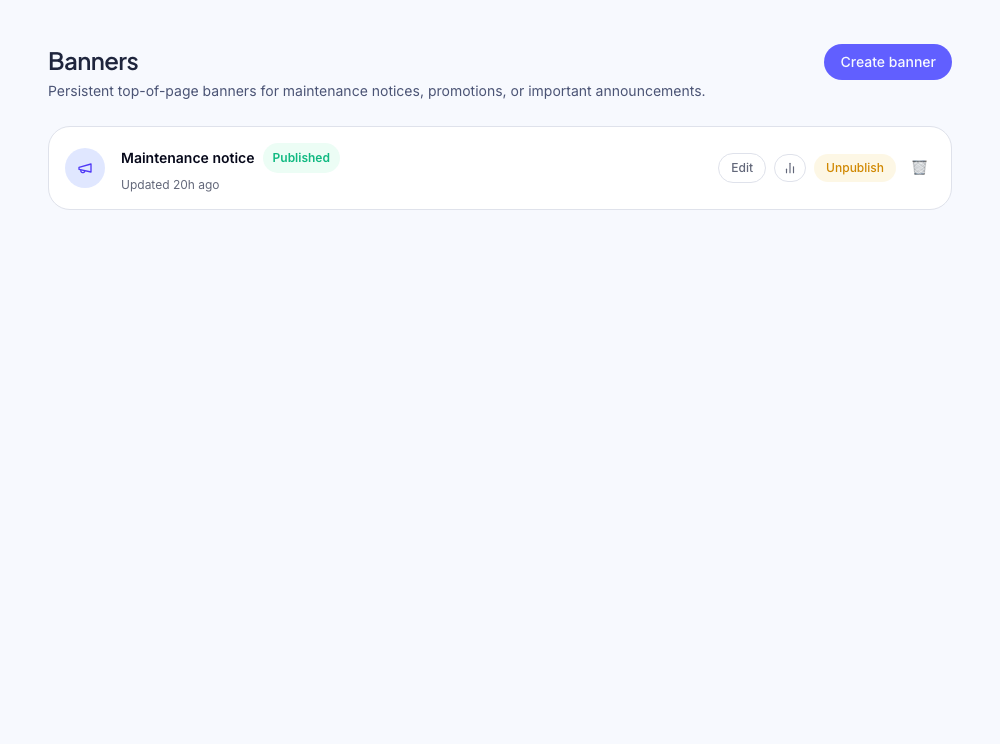
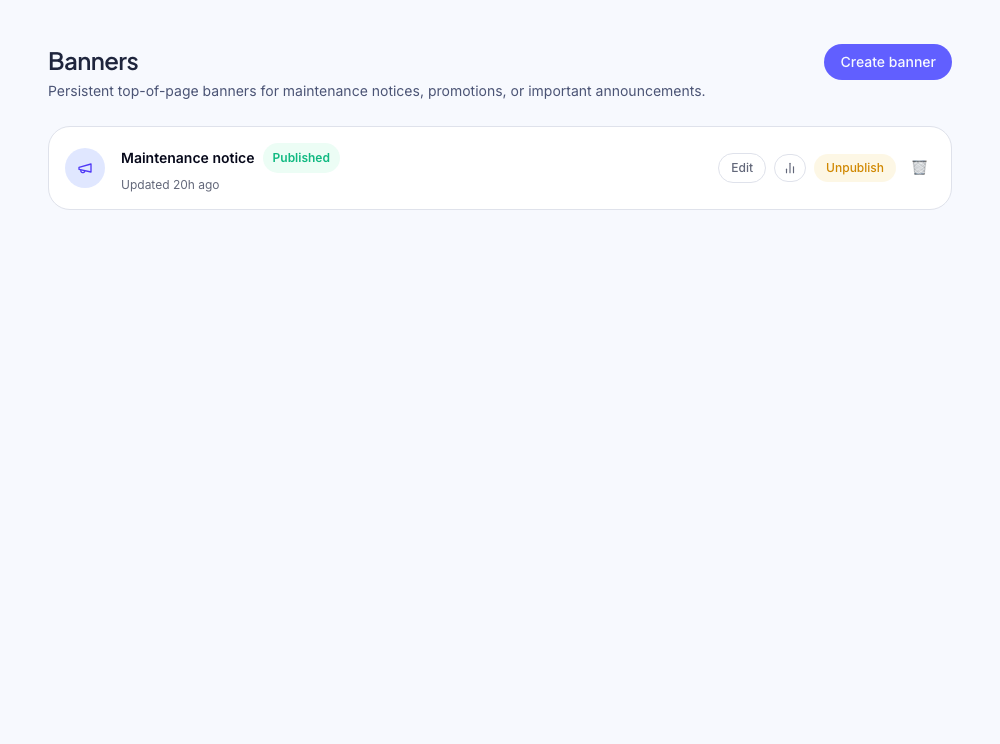
Banners are built in the dashboard under Announce → Banners.
- 1
Create a new banner
Go to Announce → Banners and click New banner.
- 2
Write your message
Add your announcement text (keep it short — one sentence). Optionally add a CTA button with a label and URL.
- 3
Choose position and style
Select Top or Bottom position. Choose a background color (or use your brand color). The text color auto-adjusts for contrast.
- 4
Set targeting and publish
Add targeting rules and publish.
Banner content
| Field | Notes | | --------------- | ---------------------------------------------------- | | Message | Keep to one sentence. Plain text only — no markdown. | | CTA button | Optional. One button max. | | Button URL | Can be internal (relative path) or external | | Dismissible | Whether users can close the banner. Default: yes. |
Position
- Top — appears above your app's main nav. The page content shifts down to accommodate it.
- Bottom — appears at the bottom of the viewport, overlaying content.
Top is the standard choice for maintenance notices and announcements. Bottom works well for non-critical upgrade prompts that shouldn't push your nav down.
Stacking
If multiple banners are active for the same user, Zenstep shows them stacked (top banners stack downward; bottom banners stack upward). Avoid having more than 2 active banners at the same time — the UI becomes cluttered.
Scheduling
You can set a start date and end date for a banner. This is useful for time-limited offers or maintenance windows — the banner appears and disappears automatically without you needing to manually publish and unpublish.
For maintenance notices, set the end time to 30 minutes after the maintenance window closes — gives a buffer for any overruns.
Targeting
Banners support all standard targeting rules. See targeting overview.
Common banner targeting:
- All users — site-wide notices (maintenance, outages)
- Free plan users — upgrade prompts (user attribute
plan = "free") - Specific URL — page-specific notices
Frequency
| Setting | Behaviour | | ------------------- | --------------------------------------------------- | | Always | Shows every page load for users who match targeting | | Until dismissed | Shows until the user clicks the × button | | Once | Shows once per user |
For maintenance banners, use Always so it shows every session until you unpublish it. For upgrade prompts, use Until dismissed so it doesn't re-appear after the user closes it.
Was this helpful?
Related articles